Report
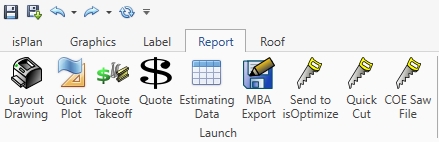
This tab is for all of the final Layout, Quoting, Estimating and Cutting
Layout Drawing

Home
.jpg)
File

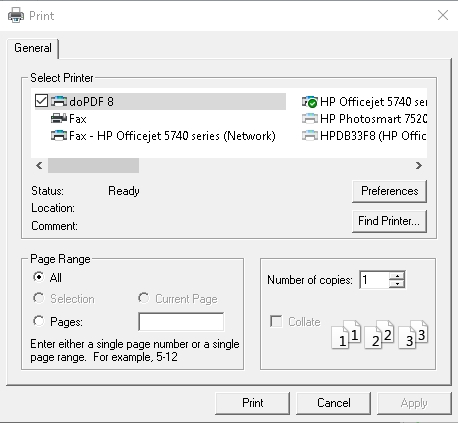
Executes print function for the Layout drawing.

Save asPDF allows the user to save the current report as a PDF file
Export

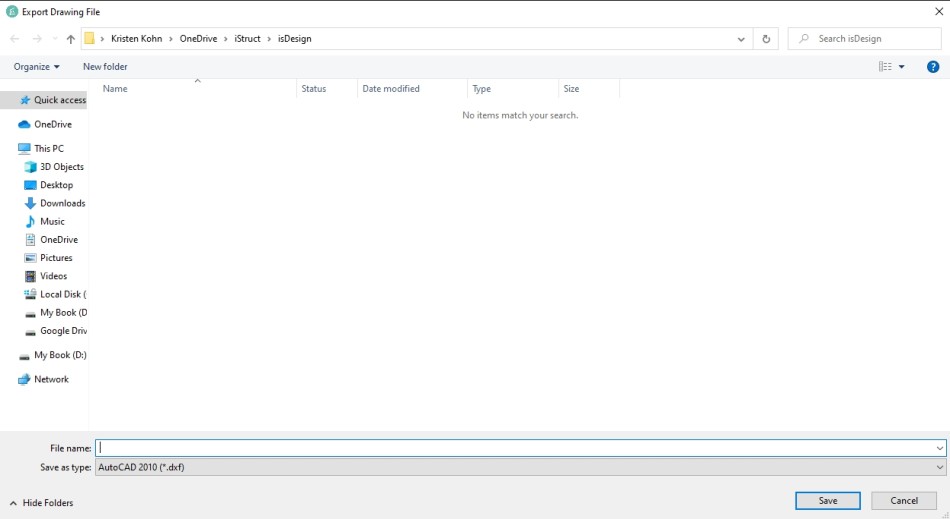
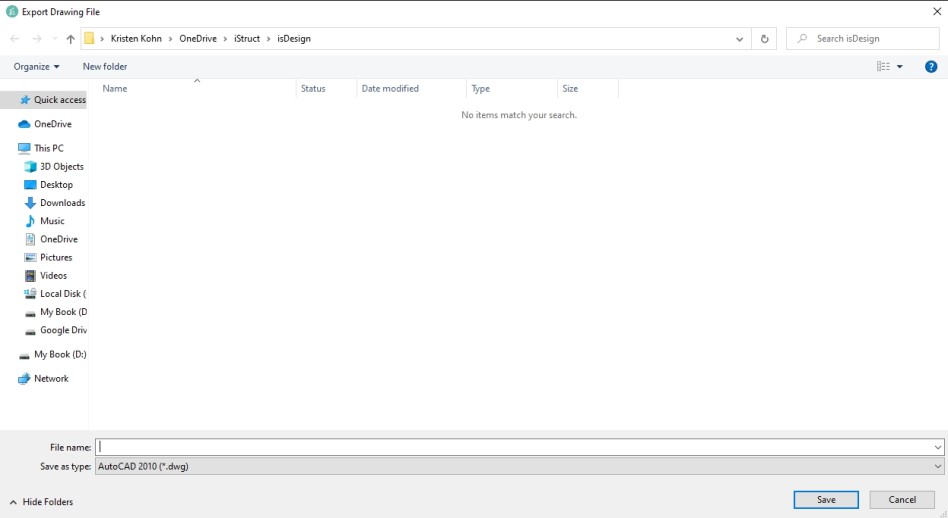
These AutoCAD DXF and DWG export menu allow a user to create a DXF or DWG AutoCAD compatible file from the Layout Drawing in isPlan®.
Page Setup
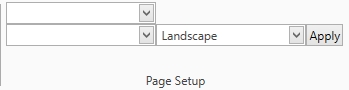
This sets up the page using the print driver, page size and page orientation
Page
New Page
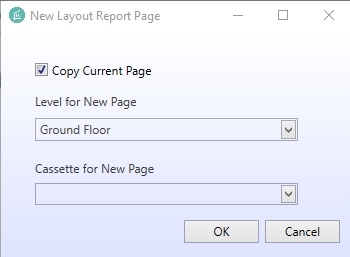
Clicking New Page allows the user to copy an existing page setup (Ground floor) to multiple levels above the Ground Floor. By using this the symmetry of each layout stays the same.
Delete
Delete Page will delete the page the user is currently on.
Page Setup
Page Setup uses the print driver size and orientation to create a Layout Page.
Style
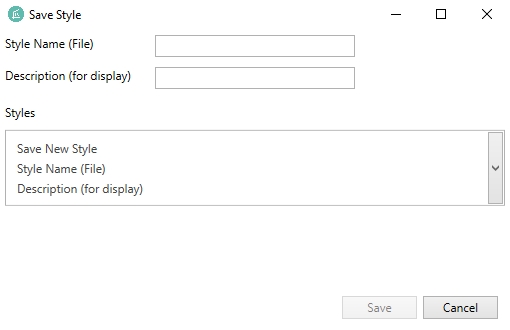
Save Style
Saves changes that the user has made and gives the capability to save as a different style name
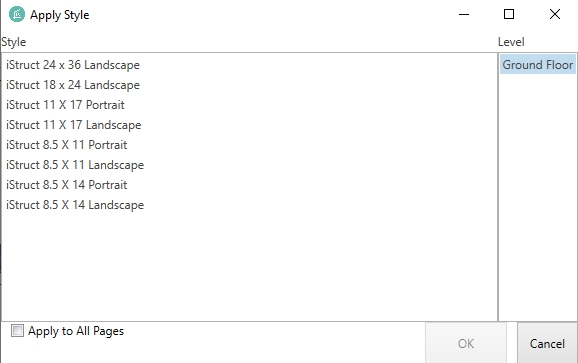
Apply Style
Applies a new style to the current layout, automatically adjusting the layout info to fit the new style.
Metric
Coverts imperial units to metric units.
Layout Details

Layout Info

This allows the user to select which items to include on the report
Add Info

Adds the item or items to the layout drawing that have been selected within the layout info tab.
3D
3D Snapshot

User can rotate, zoom and adjust 3D image before inserting a snapshot of the 3D image on the Layout Report page.
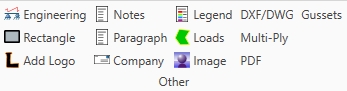
Other
Users can select any item listed in Other that can be added to the Layout Report in addition to what is already there
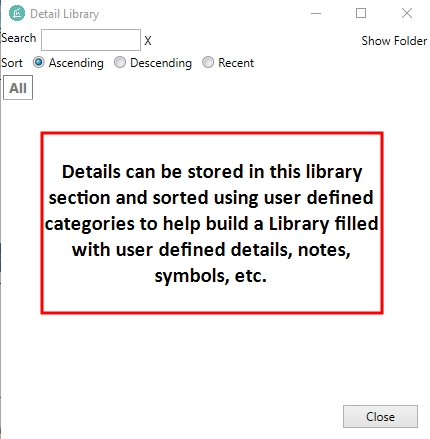
Library
Detail Library

Select Level
Selects the level or levels to apply Layout Info, 3D, Other & Library to the report.
Plan View
Add
Adds a Plan View, Wall Elevation or Elevation from Other File to the Layout Drawing Page.
Levels
Selects the level or levels to apply Layout Info, 3D, Other & Library to the report.
Intensity
Ghost Level
Allows a ghosted level to be viewable on the Layout Drawing
Ghosting
Allows for controlled intensity of the ghosted level.
Label Background
Controls ability to view the amount of Label Background.
Visibility
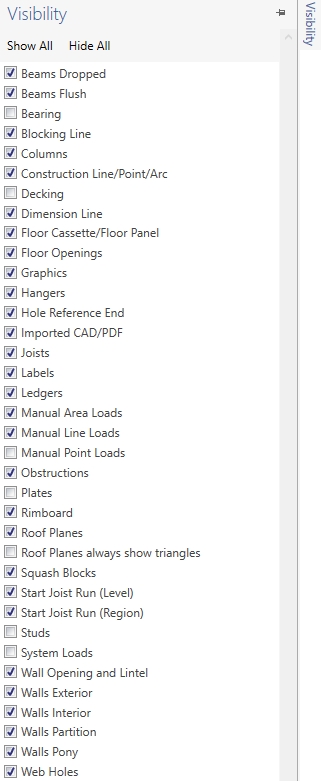
Visibility
Allows the user to select or deselect items they want shown or are working on from their current working level. This is especially helpful when a user just wants to work on one group of framing members. Example: someone working on beams may not want to see walls and joists in their view so they would turn off everything except those items for editing.
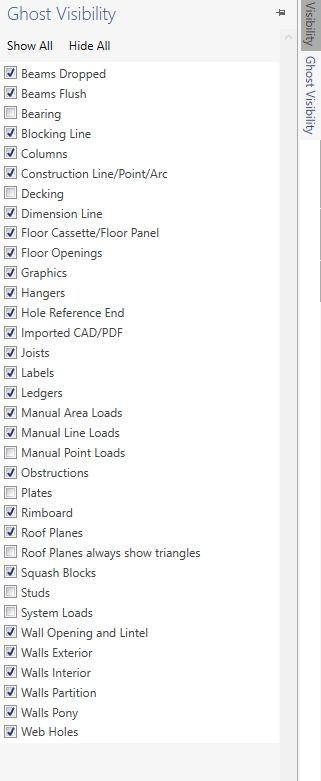
Ghosted
Allows the user to select or deselect items they want shown or are working on from their ghosted level. Especially useful for checking vertical and horizontal alignment of members above or below.
Plan View
Plan View shows various table text that can be turned off and on within the Layout Drawing. Example: Level Name shows up in the upper left corner of the Layout box. Start Joist Run can be hidden from the Layout if using user defined arrows to describe spacing start point.
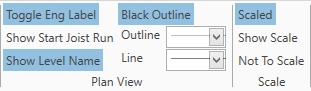
Toggle Eng Label
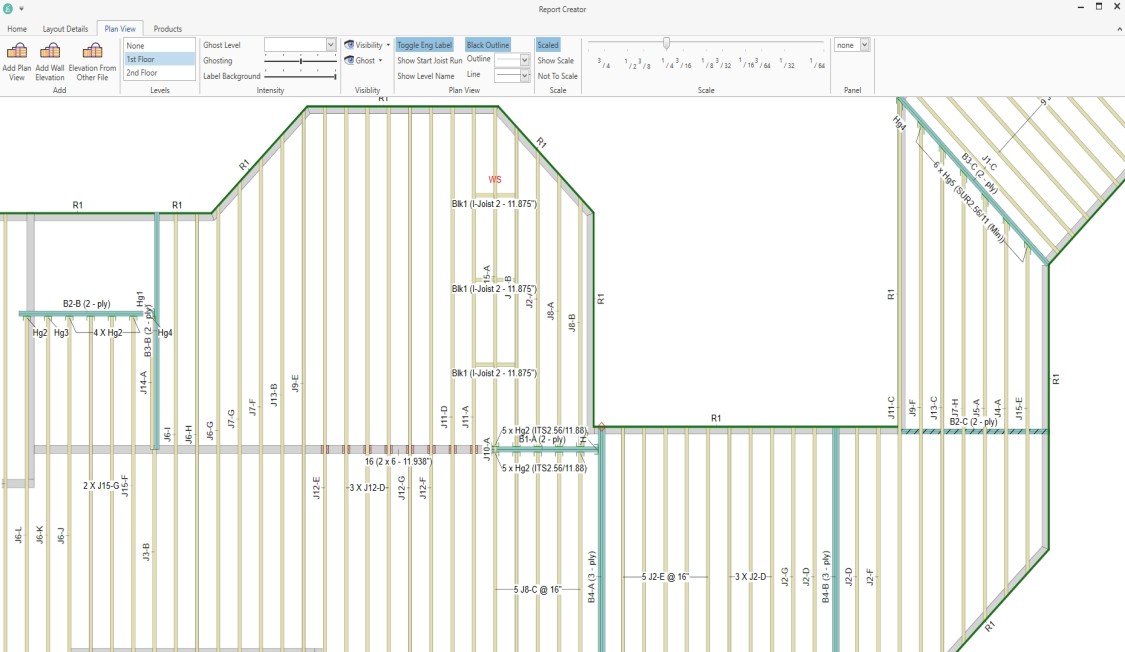
When turned on, Labels will include engineering nomenclature to reflect matching the engineered calcs. See Layout detailed below:
Show Start Joist Run
Shows the user defined Start Joist Run point selected in isPlan® where spacing is pulled from.
Show Level Name
Shows the name of the Level in the upper left corner of the Layout box.
Black Outline
Turns on line thickness used for the Layout Drawing
Outline Turns on the amount of outline used for the members of the Layout Drawing
Line Turns on the amount of outline used for the line segments of the Layout Drawing. Example: Dimension lines
Scale
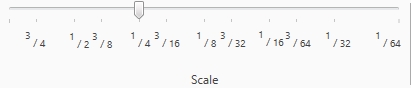
Scaled

Turns on the capability of using the scale slider within the increments provided
Show Scale
Applies the scale to the Layout box.
Not to Scale
Is used to maximize paper space reflecting no scale, trying to get the layout as big as a user can on the Layout Drawing.
Panel

For showing Floor Panels (cassettes) on the Layout Drawing.
Products
Actions
Add Takeoff
Adds Takeoff of selected level or levels to the Layout Drawing.
Selection

Allows to select products in a user defined specific order to be relflected on the Material List in a Layout Drawing.
Sort

Allows for a user to filter the way that the Labels, Lengths and Qty are prioritized in the Materials List.
Options

A few more filtering items the user can apply to their Material List.
Levels

Allows user to assign options to a specific level or levels.
Panel**

Adds Panel products to the Material List